

Managing emails efficiently can be overwhelming, especially when important messages get buried under a pile of less critical ones. Gmail’s Priority Inbox is designed to address this challenge by automatically sorting your emails based on their importance. This feature helps you focus on what matters most, boosting productivity and ensuring timely responses. Here’s a guide to exploring and using Gmail’s Priority Inbox effectively.
How to Make the Most of Gmail’s Priority Inbox
With Gmail’s Priority Inbox, you can save time and manage emails more efficiently by following these steps.
1. Understand How Priority Inbox Works
Priority Inbox uses Google’s algorithms to identify and categorize emails based on their relevance and importance. It splits your inbox into sections such as Important and Unread, Starred, and Everything Else. Emails from frequent contacts, those you reply to often, or those with specific keywords are flagged as important. Understanding this mechanism is key to leveraging the feature effectively.
2. Enable Priority Inbox
Activating Priority Inbox is straightforward:
- Open Gmail, click the Settings gear icon, and select See All Settings.
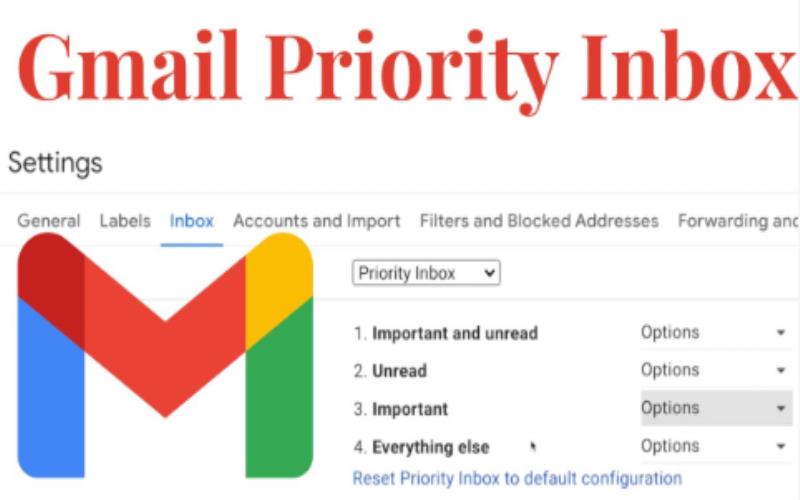
- Navigate to the Inbox tab and select Priority Inbox from the Inbox Type dropdown menu.
- Customize your sections and click Save Changes to apply.
This setup ensures that important emails always appear at the top, making them easily accessible.
3. Customize Priority Inbox Sections
One of Priority Inbox’s strengths is its customization options. You can tailor the sections to fit your workflow. For example, you might choose to display Unread Emails as the top section and move less critical emails to Everything Else. Go to Settings > Inbox, click Options next to each section, and select your preferences. This flexibility ensures the layout matches your priorities.
4. Train Gmail to Identify Important Emails
Gmail learns which emails are important based on your interactions, but you can also manually train it. Use the yellow marker icon next to an email to mark it as important or remove its importance tag. Over time, Gmail’s algorithms adapt to your behavior, refining how it categorizes emails. This active training ensures the Priority Inbox becomes more accurate in identifying relevant messages.
5. Combine Priority Inbox with Labels
Labels are an excellent complement to Priority Inbox, helping you further categorize emails. For instance, you can create labels like Urgent or Follow-Up and assign them to emails in your Priority Inbox. This combination makes it easier to track tasks or group related emails. To create a label, go to the Gmail sidebar, click Create New Label, and start tagging emails accordingly.
6. Use Priority Inbox Across Devices
Priority Inbox isn’t limited to desktop Gmail. It works seamlessly across devices, including smartphones and tablets. For Huawei users who are asking, can you use gmail on huawei, the answer is yes. By installing from Huawei AppGallery or using the Huawei Mail app, you can take full advantage of Priority Inbox and its features, ensuring productivity on the go.
7. Regularly Review and Tweak Your Settings
To maximize the benefits of Priority Inbox, periodically review and adjust your settings. Check if the categorized emails align with your current workflow and update your preferences as needed. For example, you might prioritize different sections during busy periods or reorganize them based on changing priorities. Regular tweaks keep Priority Inbox optimized for your needs.
Conclusion
Gmail’s Priority Inbox is a game-changer for managing emails, ensuring that critical messages never go unnoticed. By enabling the feature, customizing sections, and actively training Gmail to identify important emails, you can streamline your inbox and focus on what matters most. Whether you’re using Gmail on a desktop or on a smartphone, Priority Inbox works seamlessly across all platforms.